This guide assumes you've already completed onboarding.
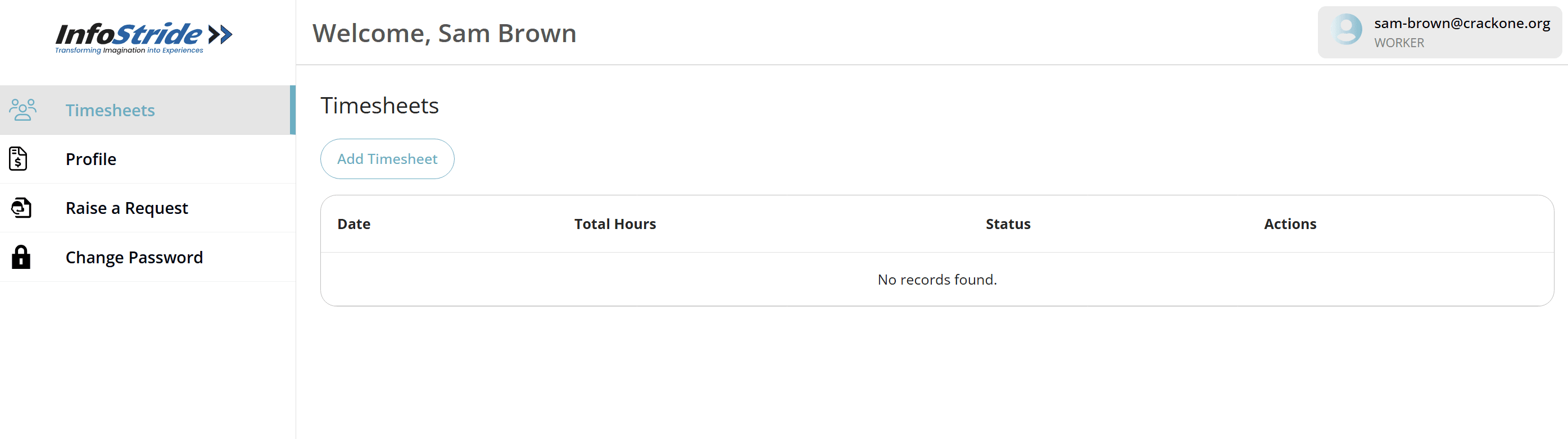
Log into your account at: https://dysfrontend.infostride.com/ After logging in, you will see a dashboard similar to the one shown below.
Click the "Add Timesheet" button to open the popup. Under "Location": - Click the drop-down - The default location selected during onboarding will appear automatically By default: - Start date = today - End date = today You can change the date if needed.
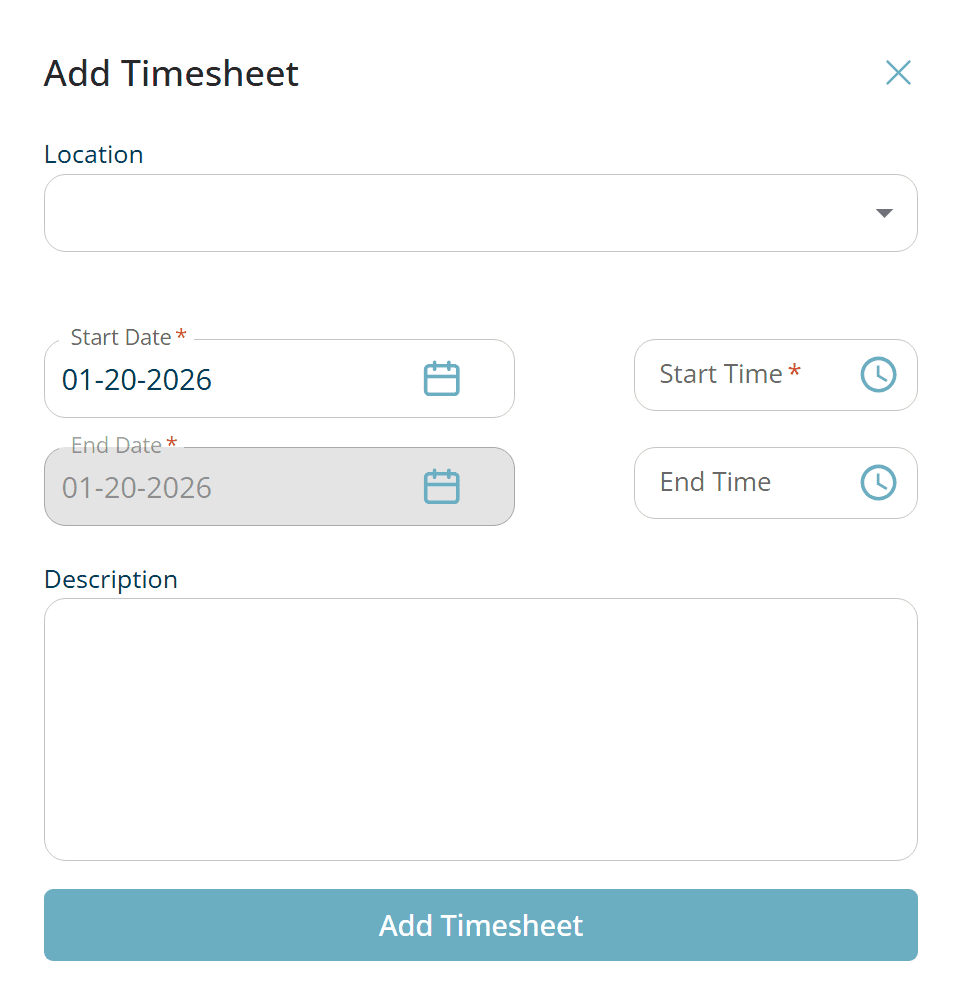
Enter your start and end time in hh-mm-aa format. - You may also click the clock icon to select time from the dropdown Important notes: - Timesheets can only be submitted for ONE day at a time - Start and end dates must always match - The end date cannot be changed Next, describe the work you completed for that day. Include enough detail to help the approver review your entry.
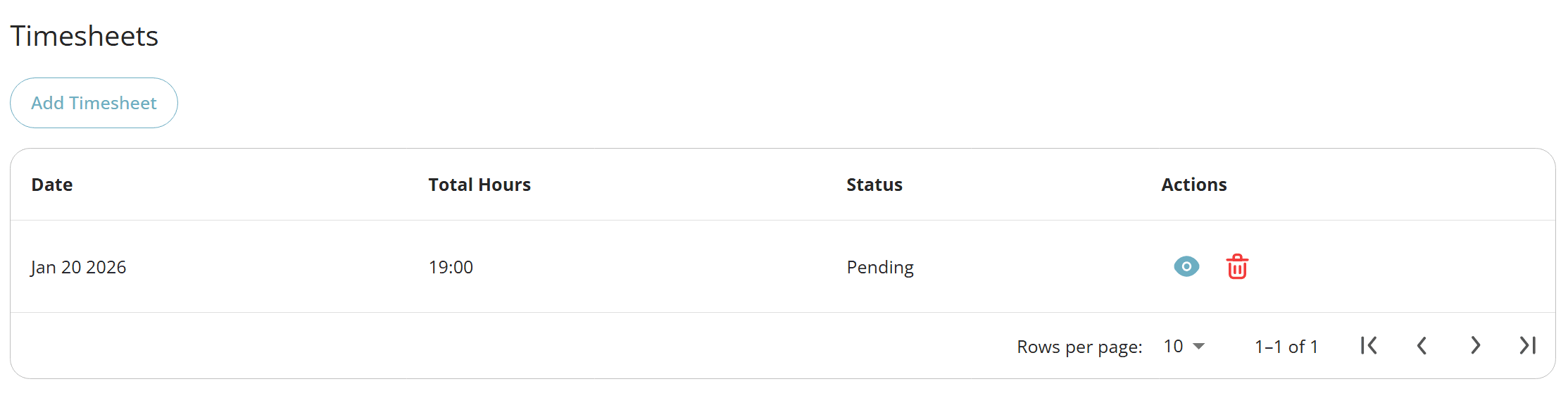
Click "Add Timesheet" to submit. Once submitted successfully, you will see a confirmation message.
Under the Actions column: - Click the eye icon to view the timesheet details - Click the trash icon to delete the timesheet ⚠️ Deleting a timesheet is irreversible. Proceed with caution.
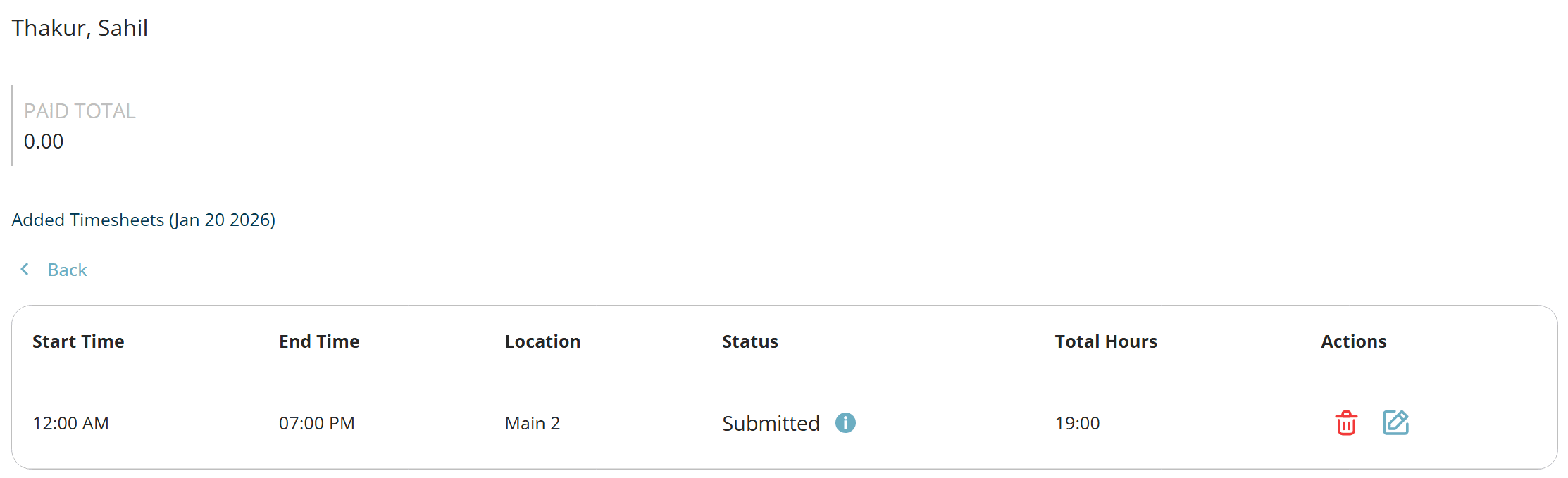
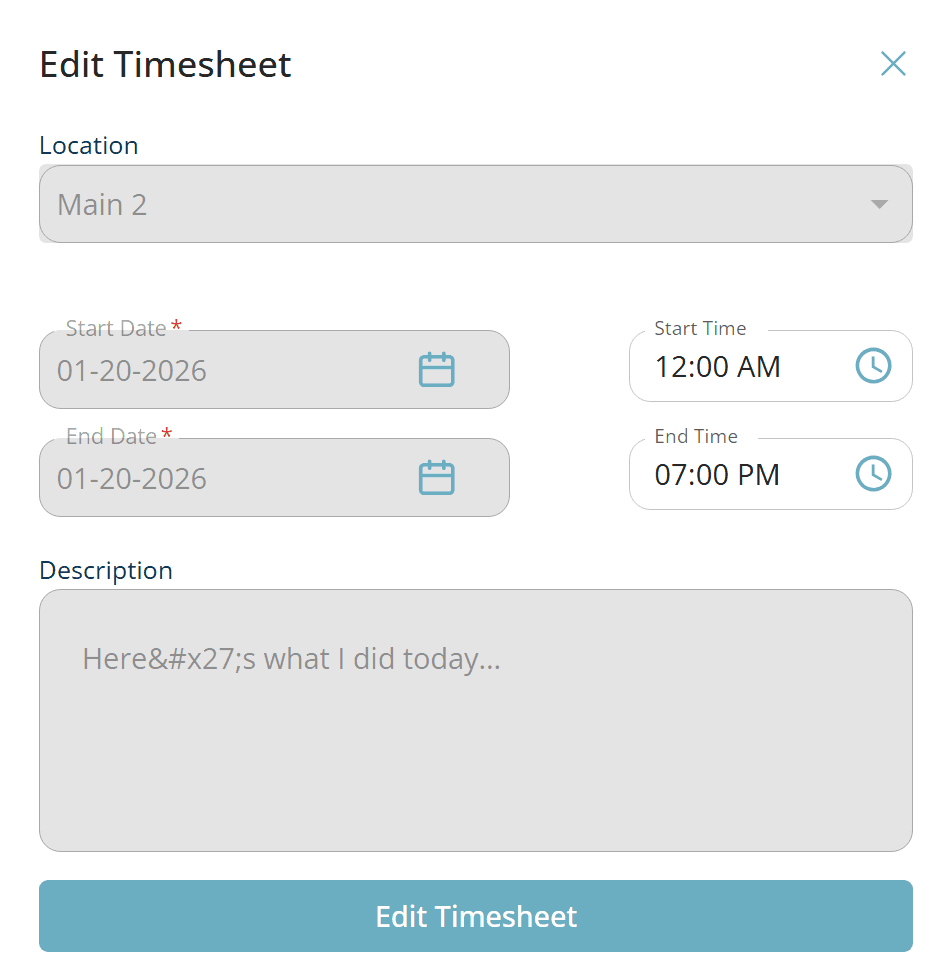
Click the pencil icon under Actions to edit your entry. You can only update: - Start time - End time To change any other information, you must delete the timesheet and create a new one.