This guide assumes that you have completed the onboarding process.
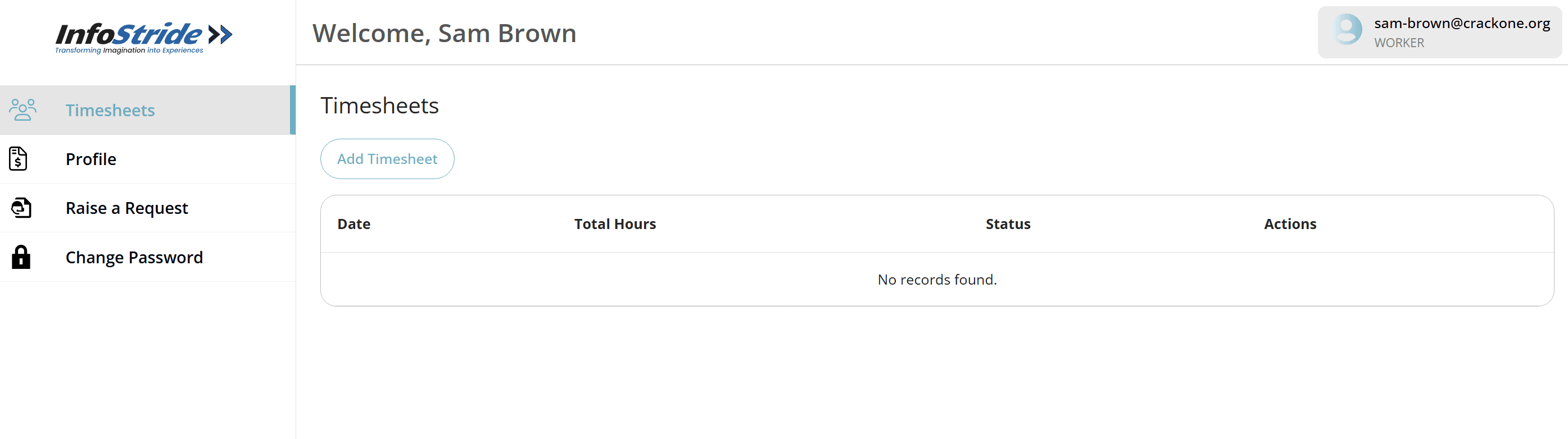
Log into your account at: https://dysfrontend.infostride.com/ After logging in, you will see a screen similar to the one shown below.
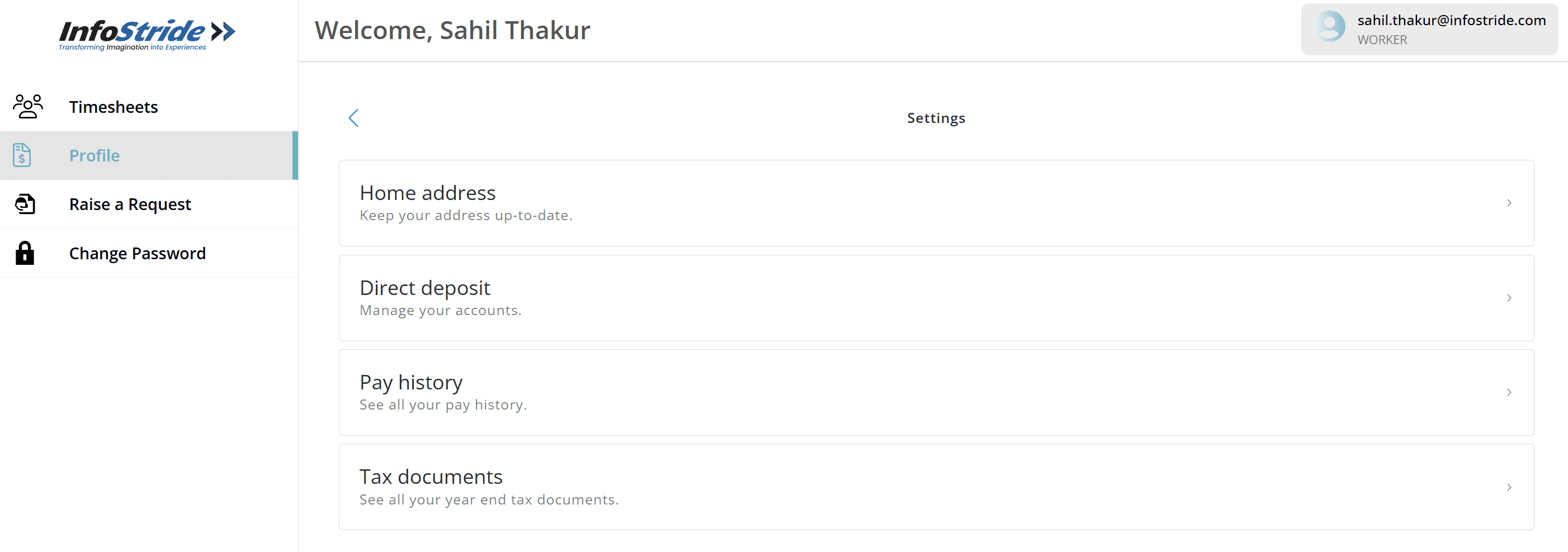
Click on "Profile" from the menu. You will see four available options: - Home Address - Direct Deposit - Pay History - Tax Documents
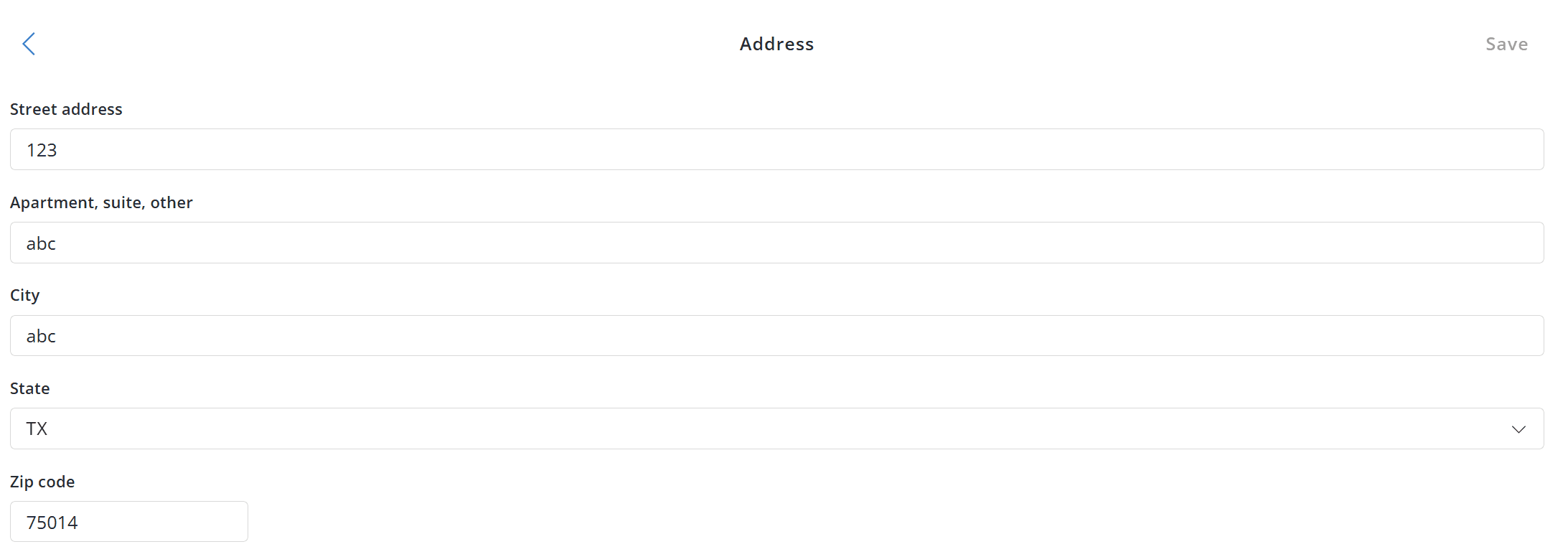
Click on "Home Address" to view the address you provided during onboarding.

Click on the address to open the editable form. You can update any field as needed. Note: - The Save button remains gray until a change is made - Once updated, the button turns blue After making changes, click "Save".
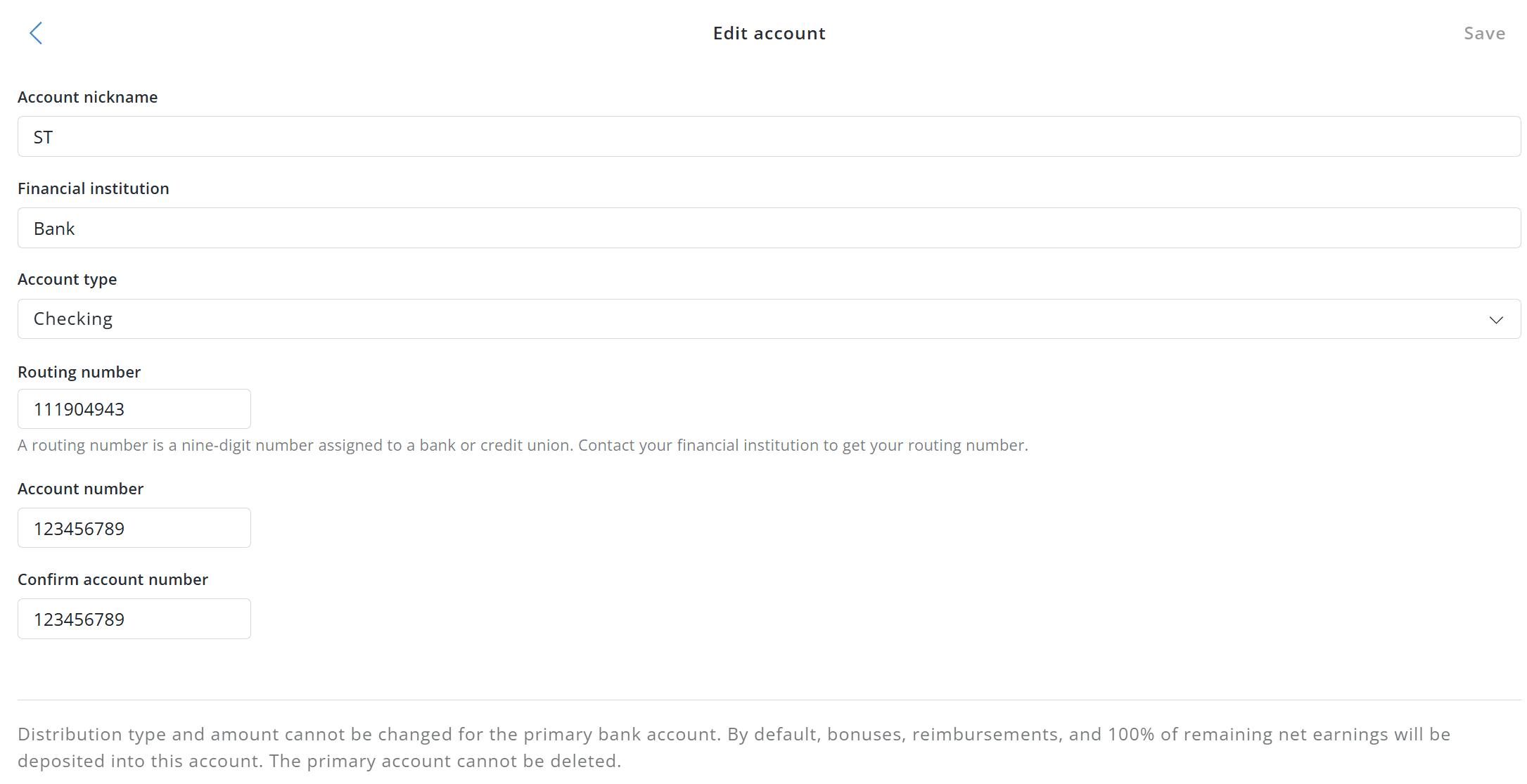
Return to your profile and select "Direct Deposit". From here, you can: - Update existing bank details - Add a new bank account
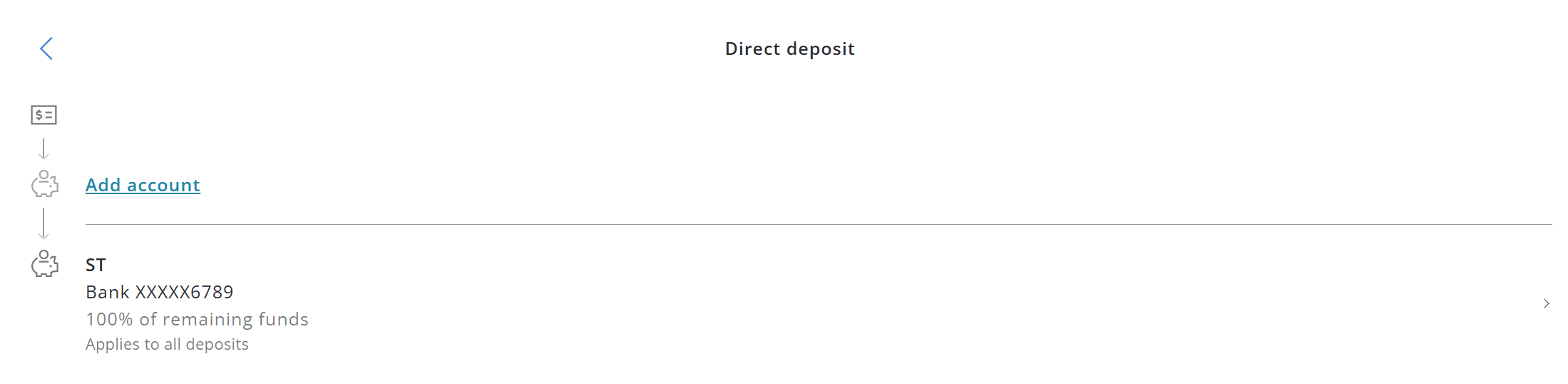
To update an existing account: - Click on the bank shown on the screen To add a new account: - Click "Add Account" Your onboarding information will remain unchanged. If you want to split payments across accounts, use the "Distribute" section at the bottom.
Click on "Pay History" to view all payments you have received.

Click on "Tax Documents" to view and update your tax-related forms.

Click on the I-9 Employment Eligibility Verification document. You can: - Download the document - Edit it The editing flow is the same as during onboarding.
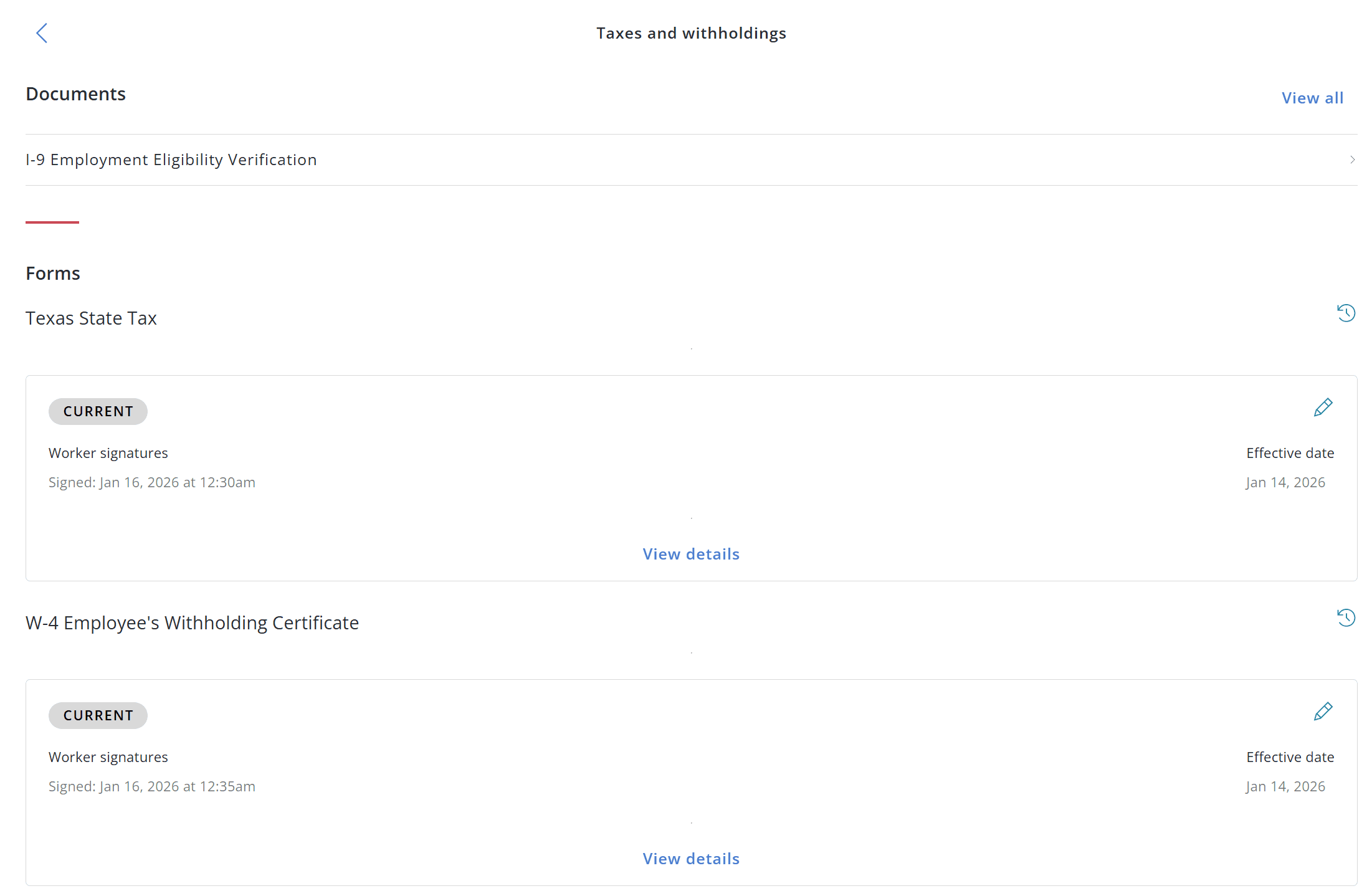
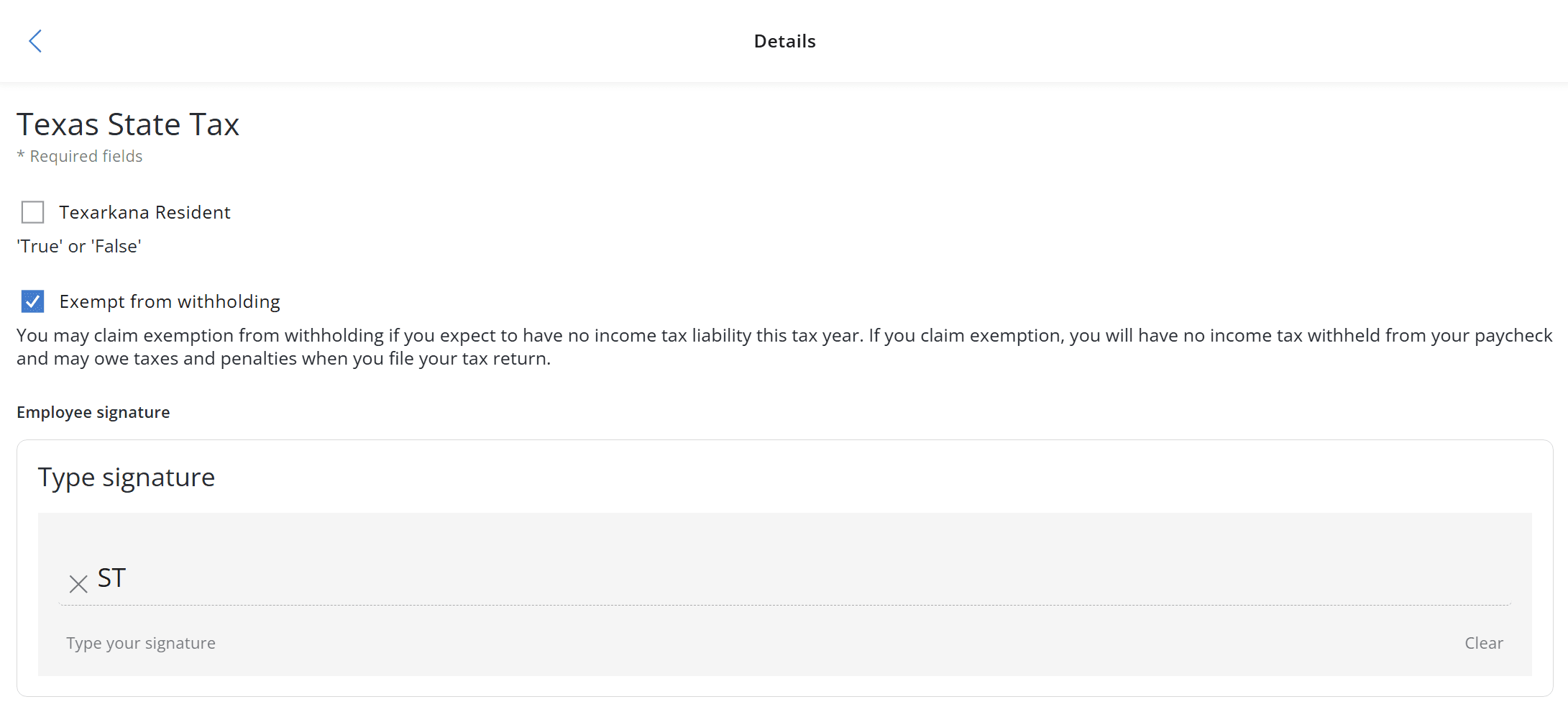
Find the appropriate entry under "State Tax". Click the pencil icon on the right to edit the form.
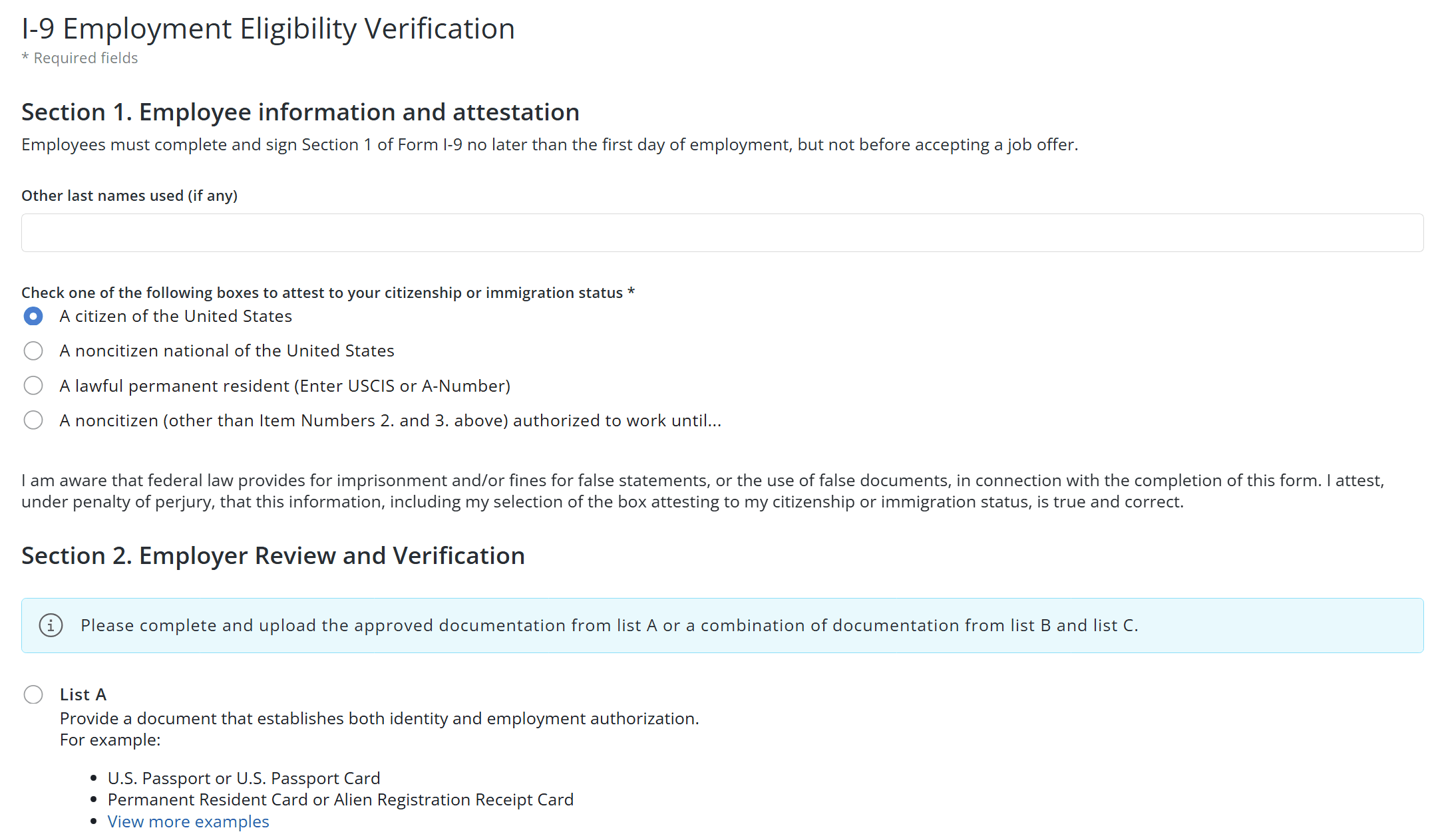
You will see the information provided during onboarding. Make any necessary changes and click "Save" at the bottom of the page.
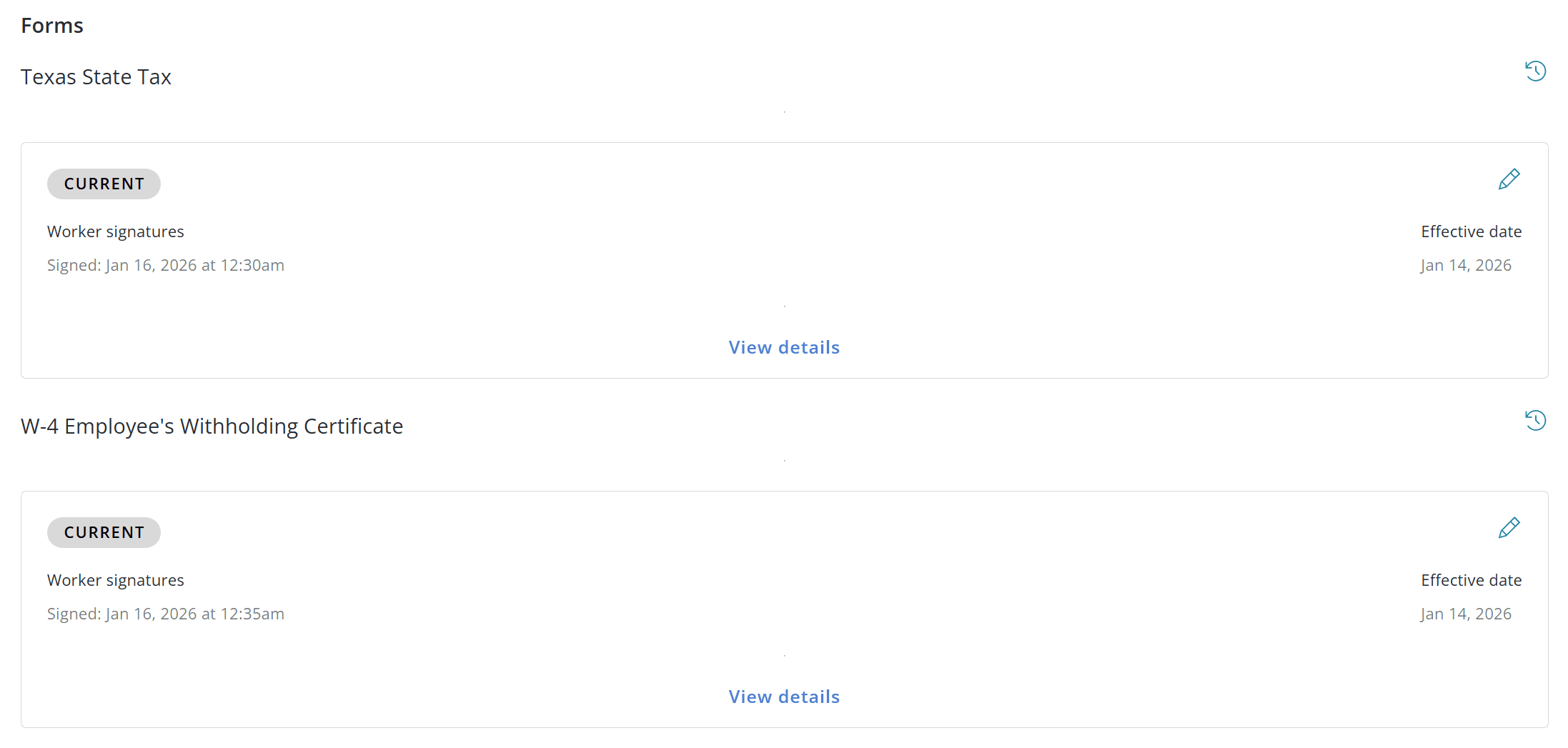
Click the pencil icon next to the W-4 Employee Withholding Certificate. Update any required details and click "Save" when finished.